
Simulate pull-in of an electrostatic MEMS actuator
In this tutorial you set up a coupled electrostatics, solid mechanics, and mesh-deformation model of a simple MEMS capacitor and find the pull-in voltage—the bias at which the structure becomes electromechanically unstable. Pull-in matters because electrostatic actuation in small gaps can no longer be balanced by elastic restoring force at that point.
Model definition
Section titled “Model definition”The model consists of two parallel square plates with equal thickness, separated by a vacuum gap. A DC voltage is applied to the bottom plate while the top plate is grounded. The bottom plate is clamped and the top plate is attached to a spring with stiffness . The displacement of the top plate is constrained to move only in the -direction. The interaction between the top plate and attached spring is determined using a lumped model:
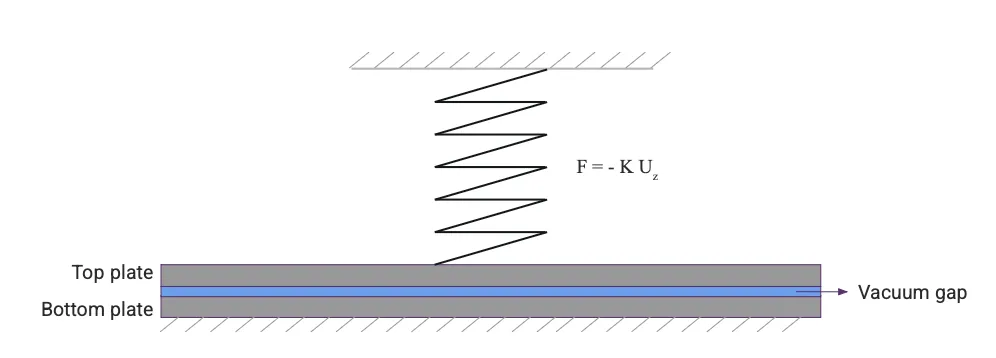
Parameters
Section titled “Parameters”The model parameters, that should be defined as variables in Allsolve, are defined as follows:
- Length of the square plate, μm
- Height of the square plate, μm
- Gap between the two parallel square plates, μm
- Stiffness of the spring, N/m
- Overlapping area between the two parallel plates, m²
Geometric elements
Section titled “Geometric elements”| Element | Size | Center point (X, Y, Z) |
|---|---|---|
| Bottom plate | L L H | (0, 0, 0) |
| Top plate | L L H | (0, 0, H + d) |
| Vacuum box | L L d | (0, 0, H/2 + d/2) |
Output Results
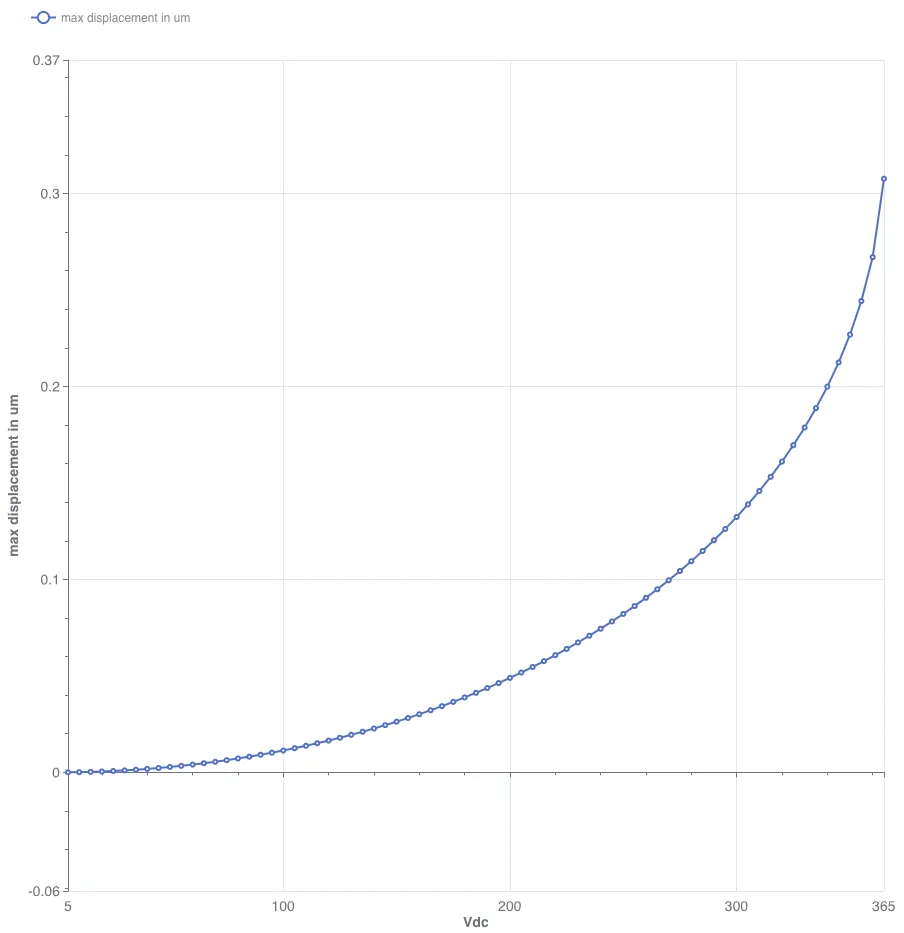
Section titled “Output Results”- Plot of applied voltage vs resulting displacement.
Material Data
Section titled “Material Data”- Vacuum for the gap between the parallel plates
- Electric permittivity: = [F/m]
- Silicon dioxide for the top and bottom plate
- Young’s modulus: = [GPa]
- Poisson’s ratio: =
- Electric permittivity: = [F/m]
Boundary conditions
Section titled “Boundary conditions”-
Bottom plate
- Electrode: =
- Clamped: =
-
Top plate
- Grounded: =
- in-plane clamp: =
Analytical solution
Section titled “Analytical solution”For the model setup defined above, the analytical solution to the pull-in voltage is given by the formula: 1
where,
- is the spring stiffness [N/m].
- is the initial gap between the parallel plates [m].
- is the electric permittivity of the gap medium [F/m].
- is the overlapping area between the parallel plates [m²].
The corresponding displacement of the top plate at pull-in voltage is one-third of the initial gap between the plates.
The pull-in voltage and the corresponding displacement based on the values defined in Parameters:
Step-by-step guide
Section titled “Step-by-step guide”Step 1 — Build the geometry
Section titled “Step 1 — Build the geometry”-
Start with a new project, and name it as
Pull-in analysis. -
In the project geometry options, start from a
box(or add a Box from Geometry elements). -
Open the Common sidebar, Definitions tab, and add the following variables.
Name Description Expression L Plate size [m] 50e-6H Plate thickness [m] 3e-6d Gap between plates [m] 1e-6Vdc DC Voltage [V] 1K Spring stiffness [N/m] 1e4A Overlap area between plates [m²] L*LYou can import the variables as a csv file:
name,description,expressionL,Plate size [m],50e-6H,Plate thickness [m],3e-6d,Gap between plates [m],1e-6Vdc,DC Voltage [V],1K,Spring stiffness [N/m],1e4A,Overlap area between plates [m²],L*L -
Return to Geometry and set the first Box so its Size (X, Y, Z) is
L,L,Hand the center is (0, 0, 0), matching the bottom plate row in Geometric elements.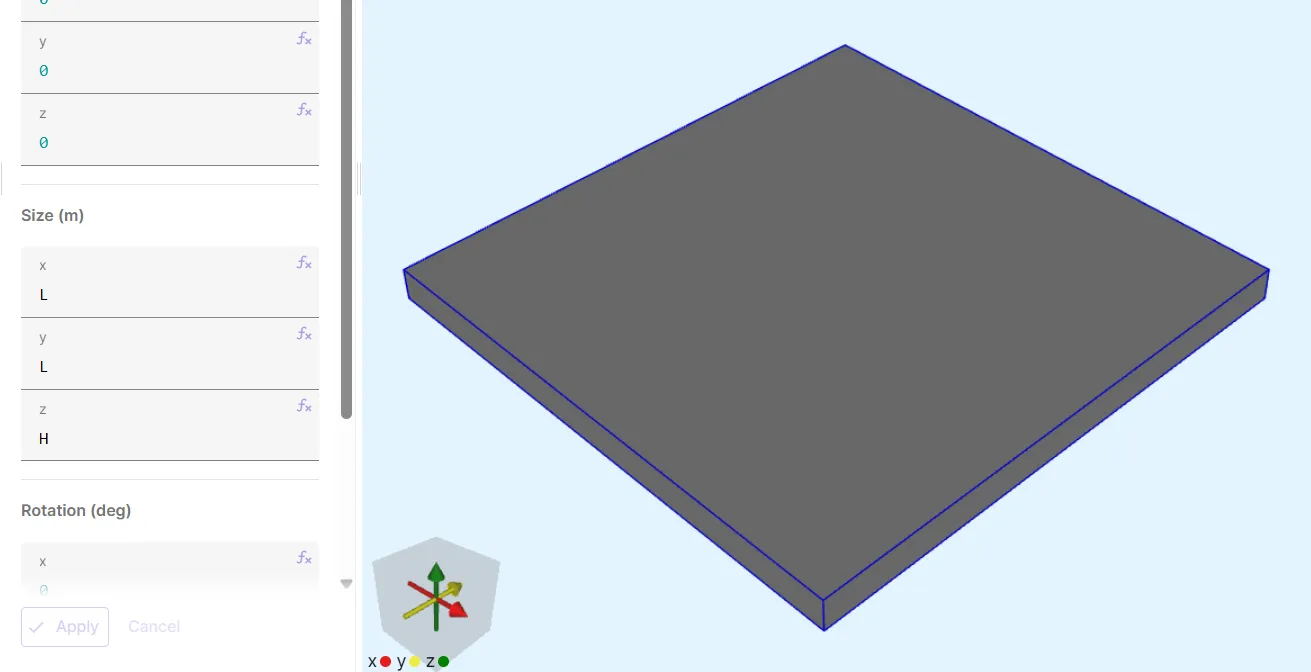
First box: set size, center, and then build. -
Add a Translation to make a second box: set Target to the bottom-plate volume (the first box; pick the volume in the model view or from Entities in the Common sidebar). Set Copy to Yes and Translation in Z to
H + d. Repeat count1adds the top plate as a second volume.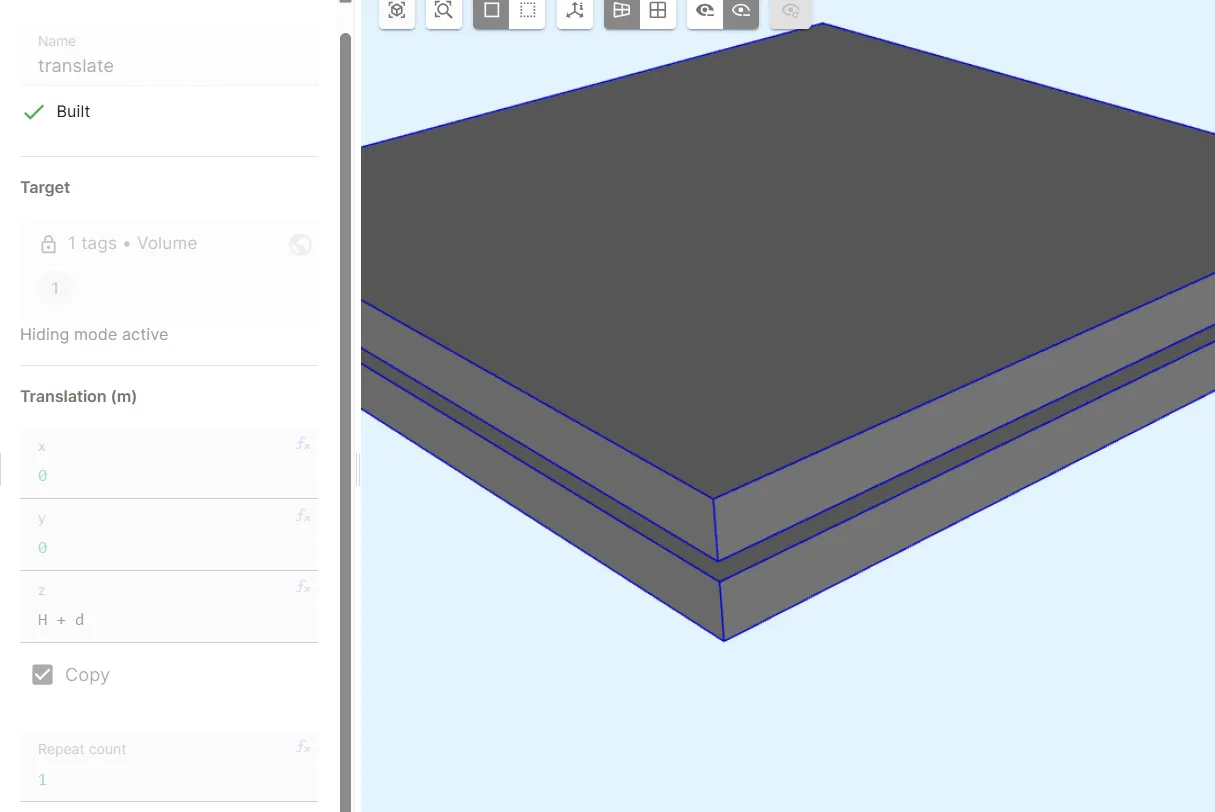
Translate the first volume along Z by H + d, with copy enabled, to form the top plate. -
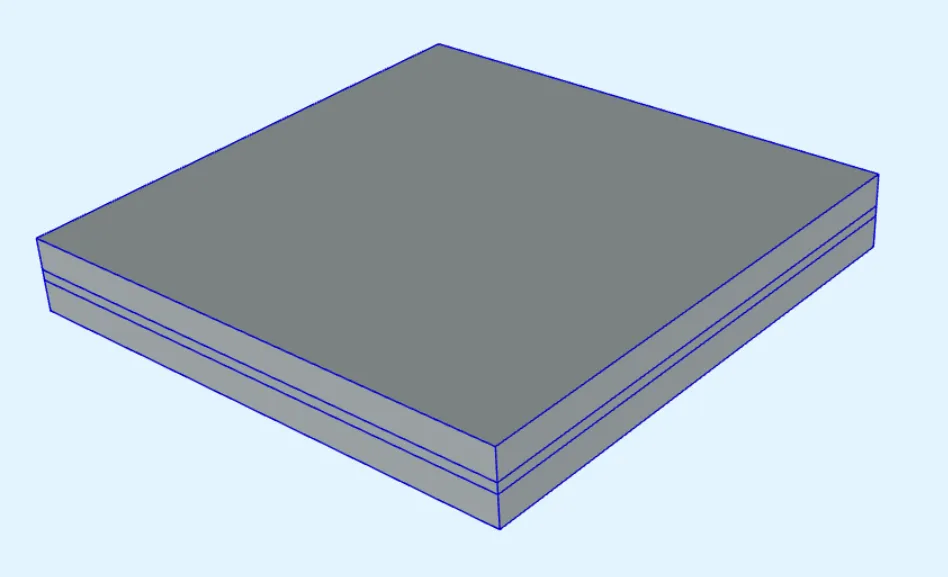
Add a third Box that fills the gap between the plates. Use Size (X, Y, Z) = (
L,L,d) and center (0,0,H/2 + d/2). ThenConfirm model changesso the vacuum cell between the plates exists as a volume in the final built model.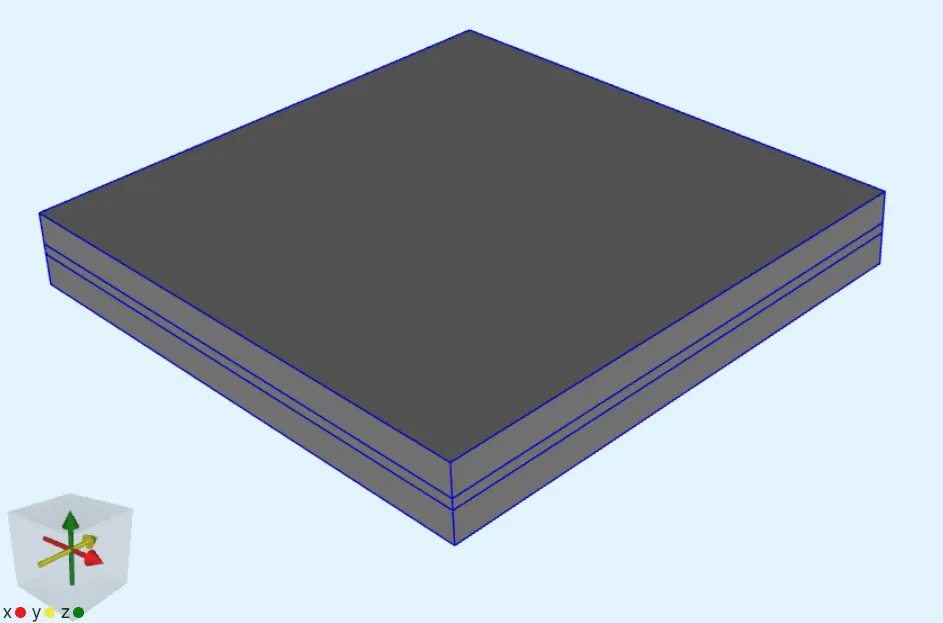
Final geometry: two plates and a box for the gap region.
Step 2 — Create regions
Section titled “Step 2 — Create regions”In the Common sidebar, open the Definitions tab. Add regions so you can pick stable names for materials and physics targets. Select which entities belong in each region by clicking on the model view or using Pick with rule. Suggested names:
| Region name | What to include |
|---|---|
plates |
Both plate volumes (silicon dioxide) |
vacuum_gap |
The gap volume (vacuum) |
bottom_plate |
The bottom plate volume only |
top_plate |
The top plate volume only |
top_plate_top |
The top exterior surface of the top plate (a surface region, for Lump U/F) |
Step 3 — Define the materials
Section titled “Step 3 — Define the materials”Open the Physics section and add Materials:
-
Add a Vacuum material. Set its target to the region you defined for the gap (for example
vacuum_gap). -
Add a Silicon dioxide material. Set its target to the region that contains both plate volumes (for example
plates).
Step 4 — Define physics and interactions
Section titled “Step 4 — Define physics and interactions”In the Physics section:
-
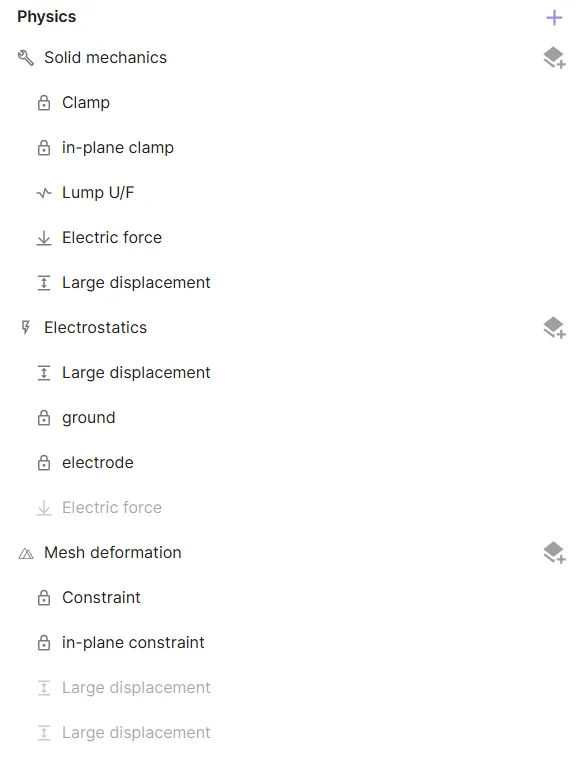
Add Solid mechanics, Electrostatics, and Mesh deformation.
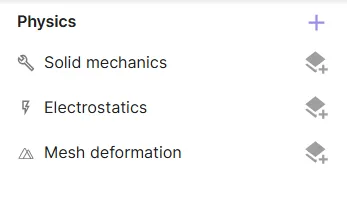
Add the three physics before wiring interactions.
Solid mechanics
Section titled “Solid mechanics”-
Set the Solid mechanics target to the same silicon dioxide volume region you used for the material (for example
plates).Physics Target Solid mechanics Region for both plates (e.g. plates) -
Add Clamp on the bottom plate.
Interaction name Interaction type Target Clamp Clampbottom_plate -
Add Constraint for in-plane fixation of the top plate:
Interaction name Interaction type Target Value In-plane clamp Constrainttop_plate[1, 0; 1, 0; 0, 0]The in-plane clamp constrains translation in X and Y directions on the top plate. Z remains free for pull-in motion.
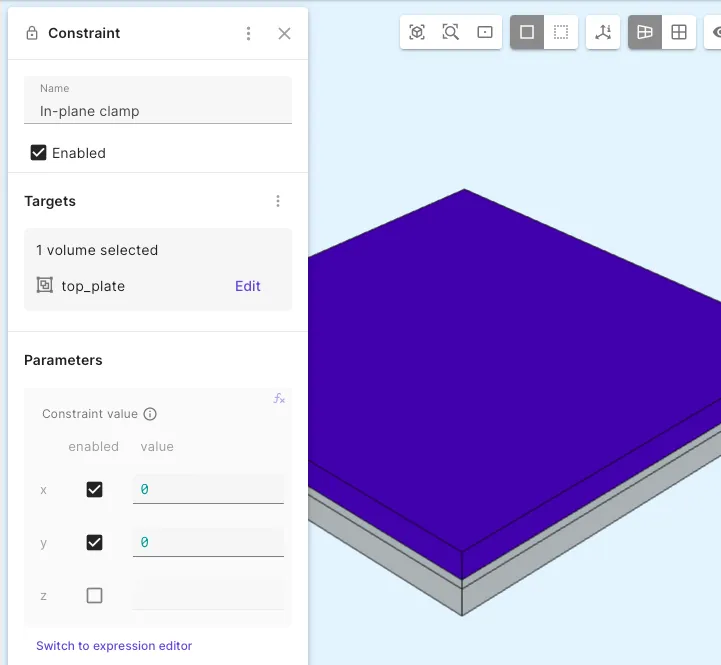
Constraint pattern for the top plate. -
Add Lump U/F to attach the lumped spring on the top face:
Interaction name Interaction type Target Actuation mode Value Lump U/F Lump U/Ftop_plate_topCircuit coupling[0, 0; 0, 0; 1, lump.Fz + K*lump.Uz]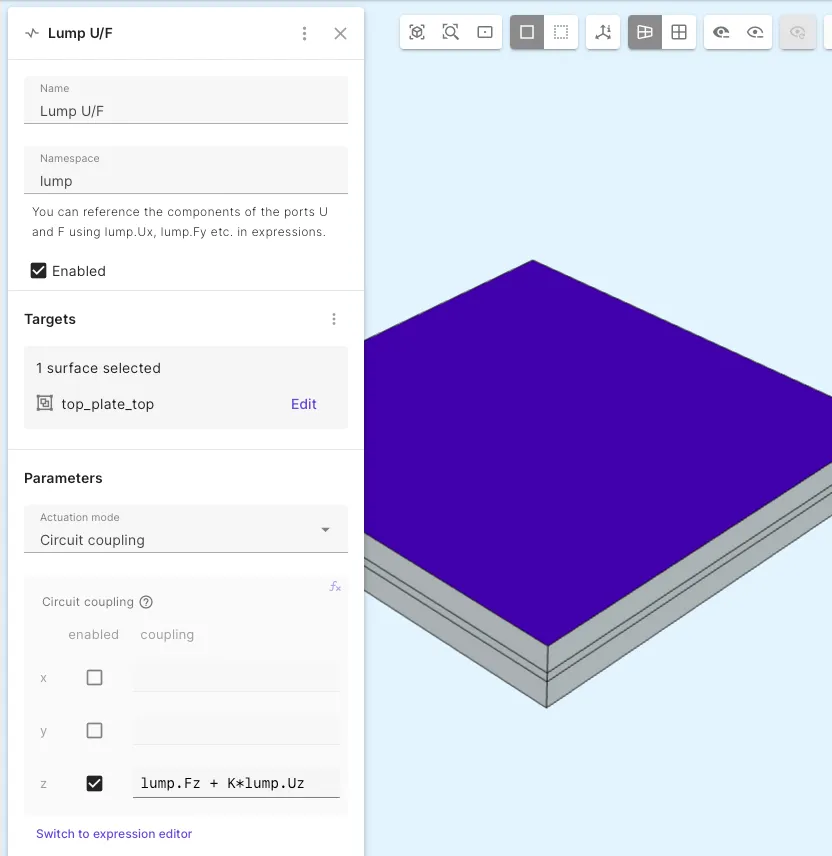
Lumped spring via circuit coupling on the top face. -
Add Electric force (Solid mechanics ↔ Electrostatics).
-
Add Large displacement (Solid mechanics ↔ Mesh deformation).
Electrostatics
Section titled “Electrostatics”-
Let the electrostatics target be the whole model (all volumes: plates and gap), unless you have a reason to restrict it.
-
Add a Constraint for the ground (top plate at 0 V):
Interaction name Interaction type Target Value ground Constrainttop_plate0 -
Add a Constraint for the electrode (bottom plate at
Vdc):Interaction name Interaction type Target Value electrode Constraintbottom_plateVdc -
Add Large displacement (Electrostatics ↔ Mesh deformation).
Mesh deformation
Section titled “Mesh deformation”-
Let the mesh deformation target be the whole model (all volumes).
-
Add a second Constraint for the vacuum region so the mesh does not shear in-plane in the gap (same pattern as the old in-plane lock on the gap volume):
Interaction name Interaction type Target Value In-plane constraint Constraintvacuum_gap[1, 0; 1, 0; 0, 0]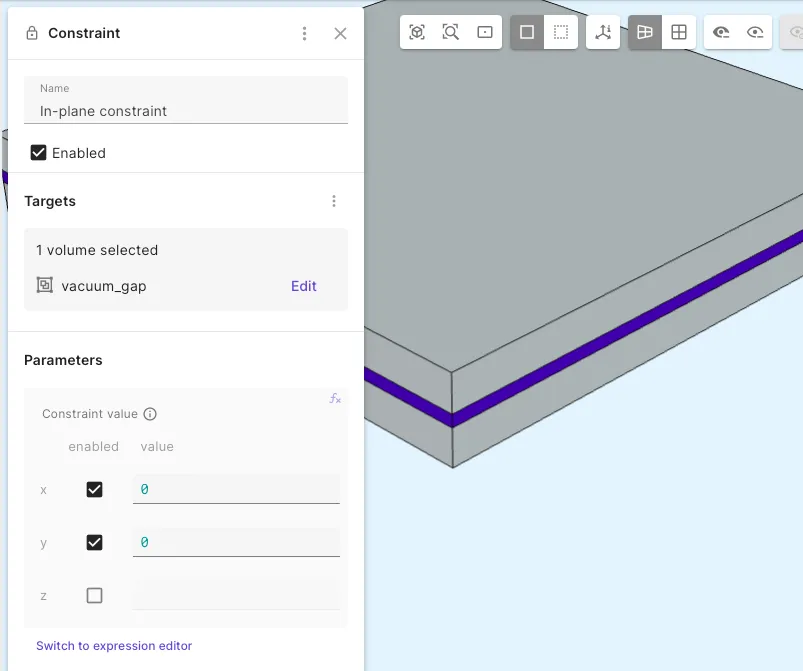
Gap region: in-plane mesh constraint.
All required physics and interactions are in place.
Step 5 — Generate the mesh
Section titled “Step 5 — Generate the mesh”-
Go to the Simulations section.
-
Add a new mesh.
-
Set Autorefine to
Disabled. -
Open the Mesh element size options.
-
Set Scale factor to
0.75. -
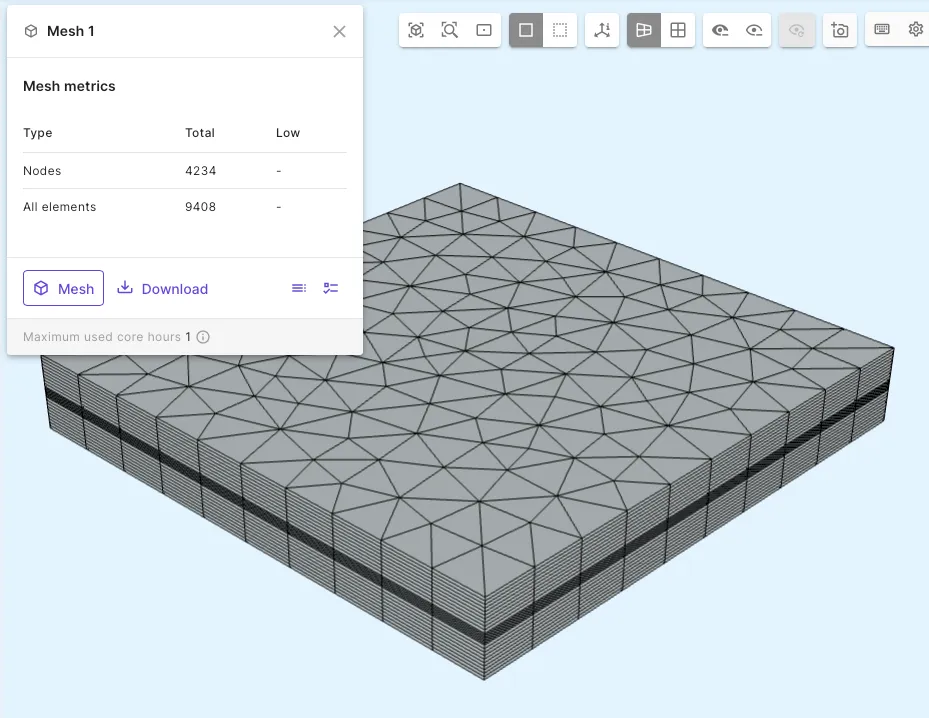
Under Customizations, add Mesh extrusion –> Simple extrusion:
Customization Overlap mode Target Sublayers Simple extrusion PreventAll three box volumes 10,8,10 -
Run meshing and check the preview.
Step 6 — Apply settings and run the simulation
Section titled “Step 6 — Apply settings and run the simulation”-
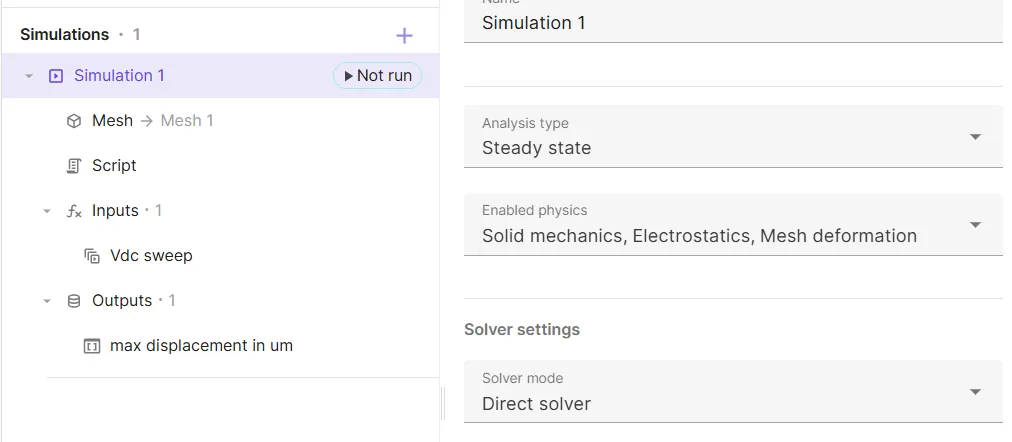
Add a new simulation.
-
Set Analysis type to
Static. -
Select the mesh you created.
-
In the Common sidebar –> Definitions, add a Sweep Variable override. Override the
Vdcvariable with expressionlinspace(5, 365, 73). Add the sweep in your simulation inputs. -
Add a Custom Value output called
max displacement in um. Set the Output expression tomaxvalue(reg.plates, -compz(u), 5) * 1e6. Herereg.platesis a region handle that matches the Solid mechanics target. -
Run the simulation.
Step 7 — Plot results
Section titled “Step 7 — Plot results”- Add a plot with
Vdcon the X axis andmax displacement in umon the Y axis.
Summary
Section titled “Summary”You defined variables and regions, applied materials to the gap and plates, coupled electrostatics, solid mechanics (with a lumped spring on the top face), and mesh deformation, meshed the model, ran a static sweep over Vdc, and plotted displacement. Compare the pull-in point on the graph to the analytical values for the same , , , and .
References
Section titled “References”Footnotes
Section titled “Footnotes”-
Kaajakari, V. MEMS Tutorial: Pull-in voltage in electrostatic microactuators, 1–2. https://www.kaajakari.net/~ville/research/tutorials/pull_in_tutorial.pdf ↩