
Working with materials
Materials define the physical behavior of geometric regions in your simulations. They are created and edited in the Physics section and must cover the full geometry before you can run a simulation.
Adding a material
Section titled “Adding a material”Open a project and go to the Physics section. In the left sidebar, select + next to Materials to open the add menu.
Three options are available:
From library
Section titled “From library”Select Add from library to add a predefined global or organization material. The library contains:
- Global materials — predefined materials shared with all users (for example, Aluminium, Copper, or FR4)
- Organization materials — materials your organization has saved to its library
When you add a material from the library, its properties are copied into the project. Local changes in the project do not update the library copy, and changes in the library are not reflected in existing project materials.
See Library — Materials for storing and sharing materials through the library.
New material
Section titled “New material”Select New material to create a blank material. Set the general settings (see below), then add the physical properties your simulation needs with + Add property.
Generate material properties (beta)
Section titled “Generate material properties (beta)”Select Generate material properties (beta) → Piezoelectric material to open the piezoelectric material properties characterization tool. This predicts elastic, piezoelectric, dielectric, and damping properties from impedance measurements of a disc-shaped sample and adds the result as a new material.
See Piezoelectric material properties characterization for the full workflow, input requirements, and limitations.
Material settings
Section titled “Material settings”Select a material in the Materials list to open its settings panel. The panel has general settings at the top and a Properties section below.
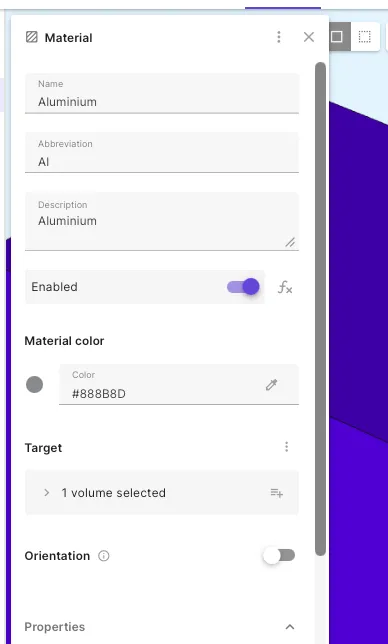
| Setting | Description |
|---|---|
| Name | Display name of the material |
| Abbreviation | Short identifier shown in the sidebar (for example, Al) |
| Description | Optional notes about the material |
| Enabled | Toggle to activate or deactivate the material. Use the button to control activation with an expression — useful for sweeping over materials in parametric studies |
| Material color | Hex color used to display the material in the model view |
| Target | Geometric entities the material is assigned to. Select target by using a region, selecting volumes on the model, or by using Pick with rule. You can also share the target as a region for reuse elsewhere in the project |
| Orientation | Euler angles that define the material coordinate frame for anisotropic properties. Enable the toggle and set the rotation angles when properties depend on direction |
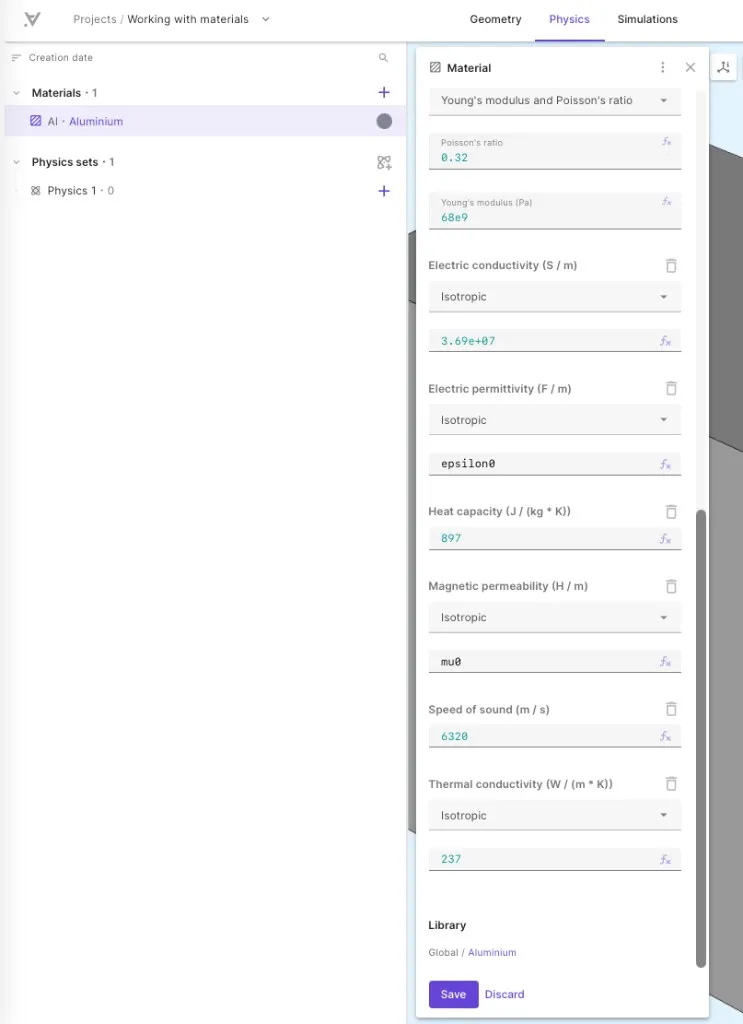
At the bottom of the panel:
- Library source — for materials added from the library, shows the origin (for example,
Global / Aluminium) - Save / Discard — commit or abandon changes. Closing the panel with unsaved changes prompts a confirmation dialog
Material properties
Section titled “Material properties”In the Properties section, select + Add property to open the property picker. Select one or more properties to add. The menu stays open so you can add multiple properties in one pass.
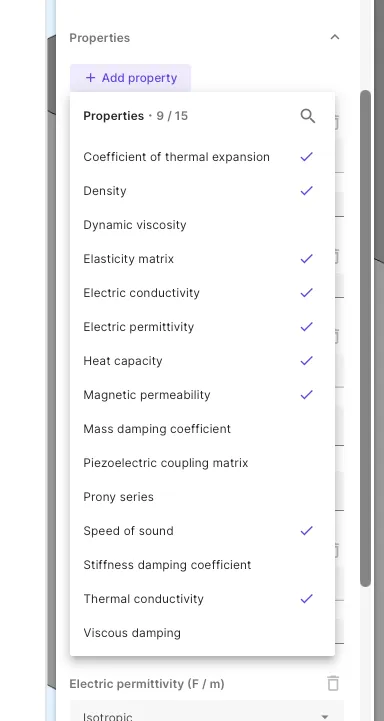
Remove a property with the trash icon on its row, or by clicking again on the list to deselect it.
Property reference
Section titled “Property reference”The table below lists all available material properties. Many properties support Isotropic (scalar) or Anisotropic (matrix) definitions through a type dropdown.
| Property | Unit | Definition | Typical physics |
|---|---|---|---|
| Coefficient of thermal expansion | 1/K | Scalar or 6-component vector | Heat solid, Solid mechanics (thermal strain) |
| Density | kg/m³ | Scalar | Most physics |
| Dynamic viscosity | Pa·s | Scalar or 3×3 matrix | Laminar flow |
| Elasticity matrix | Pa | See Elasticity matrix | Solid mechanics, elastic waves, Acoustic waves |
| Electric conductivity | S/m | Scalar or 3×3 matrix | Current flow, EM waves |
| Electric permittivity | F/m | Scalar or 3×3 matrix | Electrostatics, EM waves |
| Heat capacity | J/(kg·K) | Scalar | Heat solid, heat fluid |
| Magnetic permeability | H/m | Scalar or 3×3 matrix | Magnetism A, H, φ |
| Mass damping coefficient | 1/s | Scalar | Solid mechanics and elastic waves proportional damping |
| Piezoelectric coupling matrix | C/m² | 6×3 matrix | Piezoelectricity |
| Prony series | Pa | Series | Viscoelasticity — see MEMS 003 example |
| Speed of sound | m/s | Scalar | Acoustic waves |
| Stiffness damping coefficient | s | Scalar | Proportional (Rayleigh) damping |
| Thermal conductivity | W/(m·K) | Scalar or 3×3 matrix | Heat solid, heat fluid |
| Viscous damping | — | Bulk and shear viscosity, or wave attenuation | Acoustic and elastic wave dissipation |
Elasticity matrix
Section titled “Elasticity matrix”The Elasticity matrix property supports three input modes, selected from a dropdown at the top of the property:
- Young’s modulus and Poisson’s ratio — enter Poisson’s ratio and Young’s modulus (Pa). Allsolve computes the elasticity matrix internally.
- Pressure and shear wave velocities — enter pressure wave velocity and shear wave velocity (m/s). Requires Density to be defined.
- Full elasticity matrix — enter the complete 6×6 matrix directly.
Prony series
Section titled “Prony series”The Prony series property defines viscoelastic behavior through relaxation times and corresponding moduli. Use it together with the Elasticity matrix property and a Viscoelastic material model interaction in elastic waves simulations.
Define Prony relaxation times and moduli as lists. See the MEMS 003 — Viscoelasticity benchmark for a complete example.
Viscous damping
Section titled “Viscous damping”The Viscous damping property models dissipation in acoustic and elastic wave simulations. Two definition modes are available:
- Bulk and shear viscosity — enter viscosity values directly
- Pressure and shear wave attenuation — enter attenuation values; requires the Elasticity matrix to be defined using pressure and shear wave velocities
Expressions and variables
Section titled “Expressions and variables”Property values accept numeric constants, scientific notation (for example, 68e9), built-in constants (for example, epsilon0, mu0), and project variables and functions. Use expressions to parametrize material properties for sweeps and overrides.
Material properties can also be referenced in interaction expressions through the par namespace (for example, par.epsilon()). See Variable overrides for parametric sweeps over material properties.
For scripting, see the Allsolve SDK — Material reference.
Sweeping over materials
Section titled “Sweeping over materials”A parametric sweep can switch between materials assigned to the same volume. This is useful when you want to compare how different materials affect simulation results — for example, running the same transient simulation once with water and once with blood as the medium for medical ultrasound.
The approach uses the Enabled field on each material together with a variable override of type Sweep. Each material gets its own enable variable, and the sweep toggles the variables so that exactly one material is active per step.
Setting up a material sweep
Section titled “Setting up a material sweep”-
Create a variable for each material that controls whether it is enabled. For example, define
water_enabledwith an initial value of1andblood_enabledwith an initial value of0. -
On each material, select the button next to Enabled and enter the corresponding variable. Set the Enabled expression to
water_enabledon the Water material andblood_enabledon the Blood material.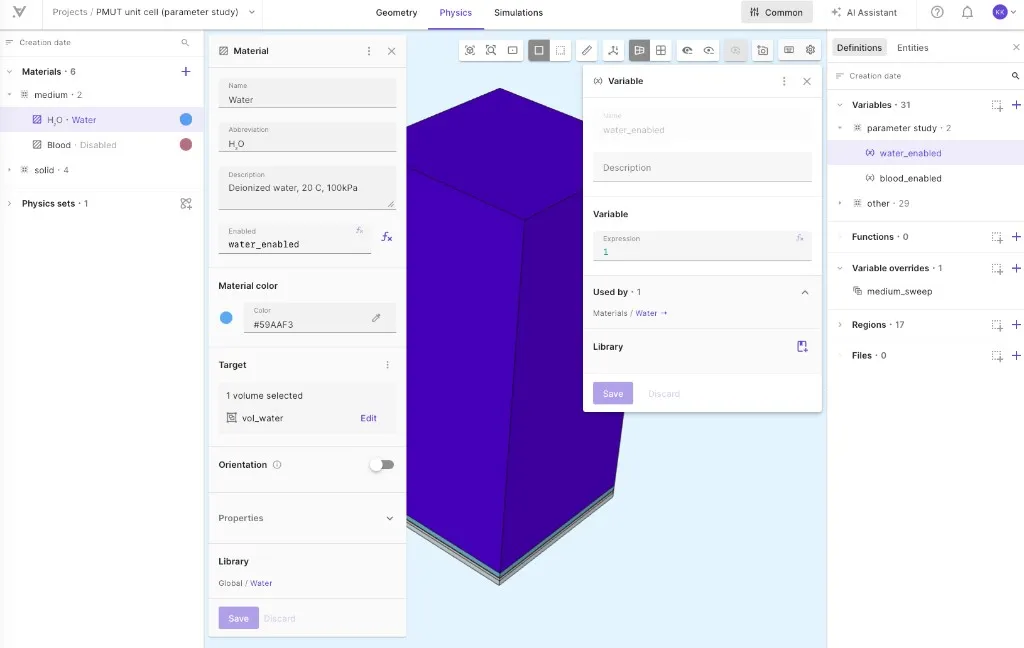
Water material — Enabled field set to water_enabled 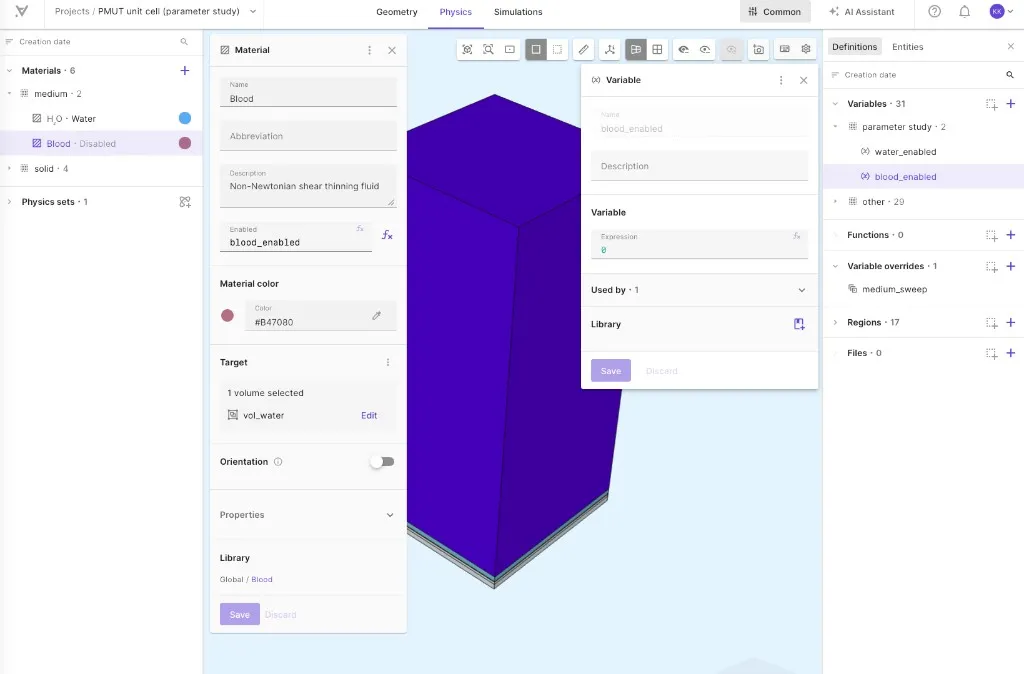
Blood material — Enabled field set to blood_enabled -
In Definitions → Variable overrides, create a new override of type Sweep. Add both enable variables and set their override vectors so that exactly one material is active in each step. For two materials, use
[1, 0]and[0, 1].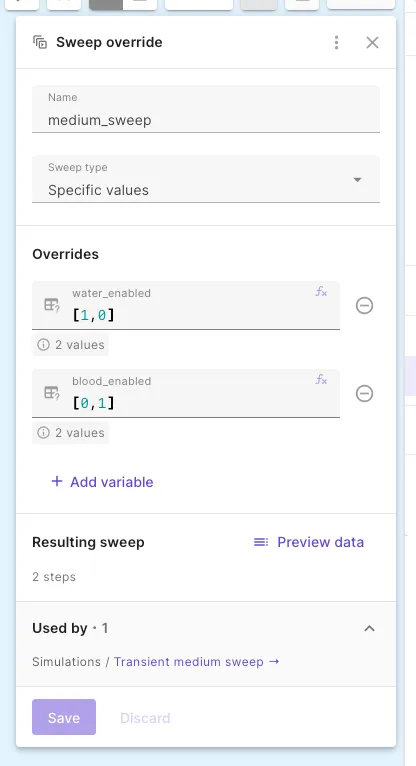
Sweep override — water_enabled [1, 0] and blood_enabled [0, 1] -
In the simulation’s Inputs, select the sweep override you created.
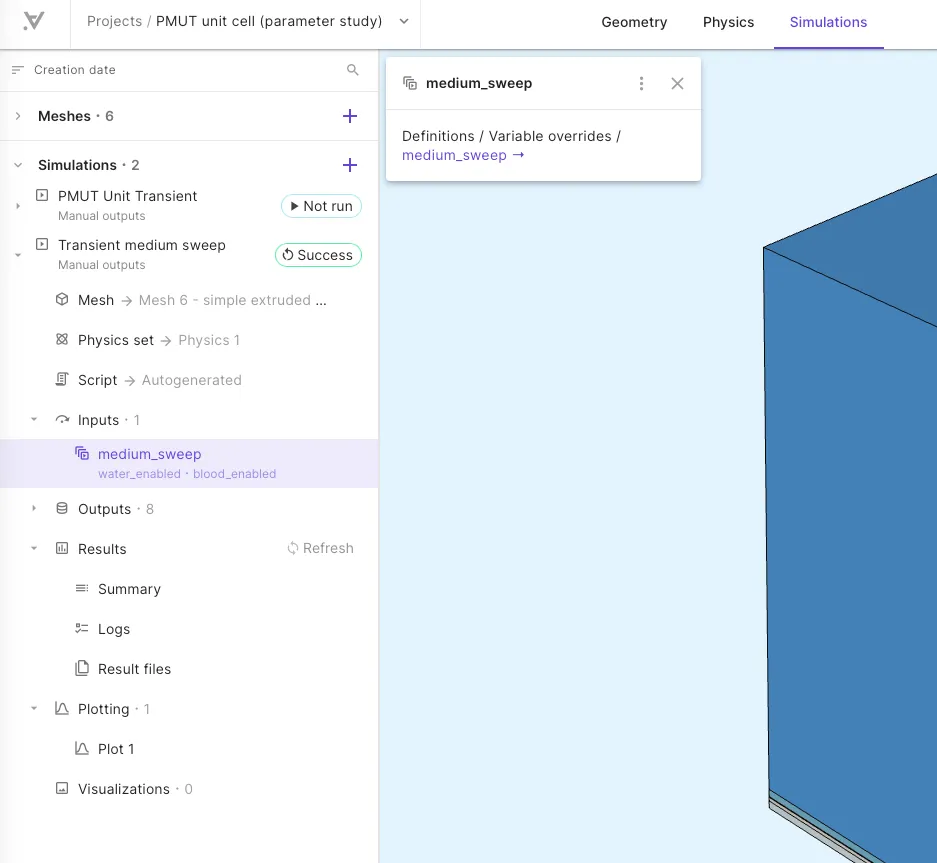
Simulation inputs — medium_sweep selected -
Run the simulation. Each sweep step runs with a different material active. Results from all steps are available in plotting, with series labeled by the enable variables.
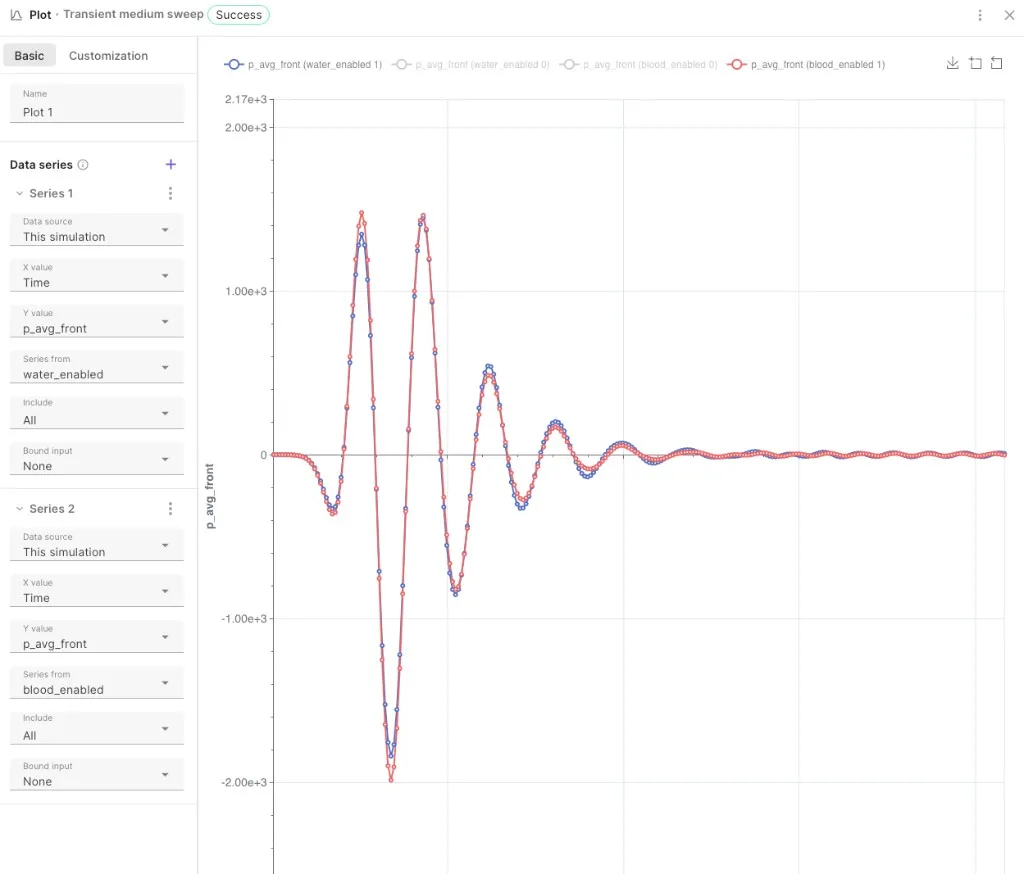
Plot showing p_avg_front for the water_enabled and blood_enabled sweep steps
For the full details on sweep types, multivariate sweeps, and override vector syntax, see Variable overrides.
- Add only the properties your simulation physics require — not every material needs all 15 properties.
- Use Add from library for common materials and customize properties locally as needed.
- Share material targets as regions when the same volume set is used for materials, boundary conditions, or interactions.
- When using frequency-dependent material properties, set the target frequency in simulation settings for transient analyses.