
Working with physics
Physics are configured in the Physics section of your project. The left sidebar lists Physics sets — the containers that hold your physics, interactions, and couplings.
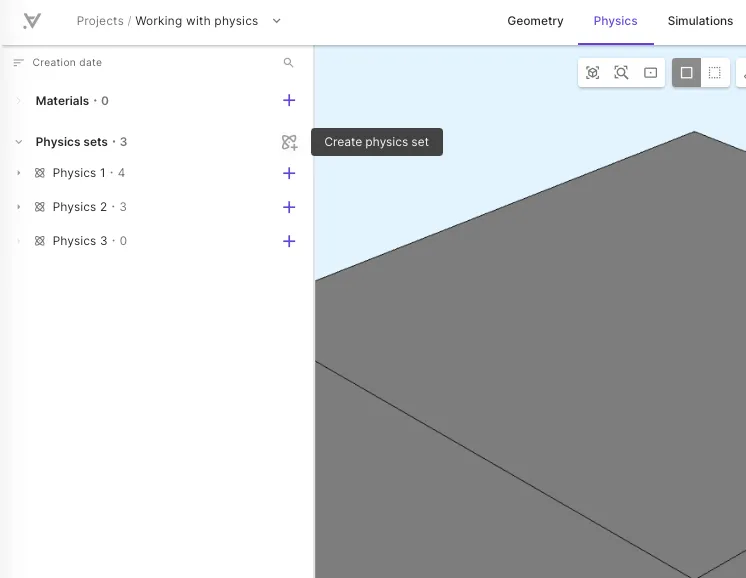
Physics sets
Section titled “Physics sets”A physics set groups one or more physics that belong together in a simulation. For example, a piezoelectric transducer might use one physics set containing Elastic waves, Acoustic waves, and Electrostatics.
Each set appears in the sidebar as Physics 1, Physics 2, and so on. The number after the name shows how many items the set contains.
Create a physics set
Section titled “Create a physics set”- Go to the Physics section.
- Select Create physics set next to Physics sets in the sidebar.
- Enter a Name and optional Description for the set.
- Select Save.
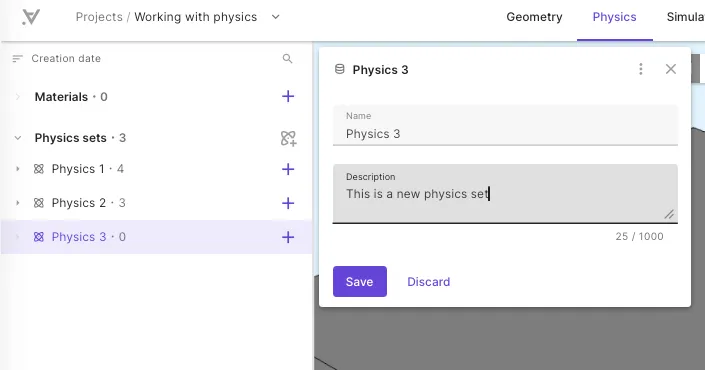
You can create multiple physics sets in one project. Each simulation solves one set — to try a different configuration, create another set and assign it in the Simulations section.
Adding physics to a set
Section titled “Adding physics to a set”Once a physics set exists, add physics to it.
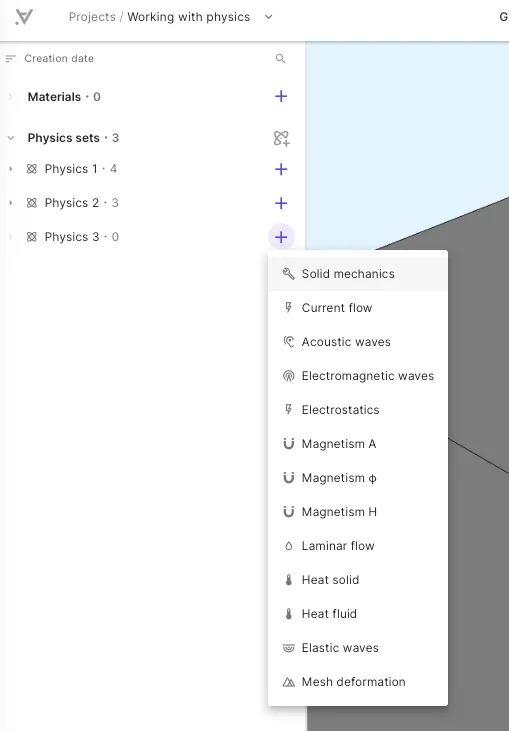
- Select next to a physics set.
- Choose a physics from the menu — for example Solid mechanics, Elastic waves, or Electrostatics.
- Configure the physics in the panel that opens.
Configuring physics
Section titled “Configuring physics”All physics have at a target region and one or more fields. Common settings include:
| Setting | Description |
|---|---|
| Target | The volumes or surfaces where this physics is active. Defaults to the whole geometry; use Pick volumes (or Pick with rule) to scope to a region. |
| Fields | The primary unknowns solved by this physics — for example displacement u for Solid mechanics and Elastic waves. |
| Interpolation order | The polynomial degree of the finite-element basis. Order 2 is typical for wave and structural problems. |
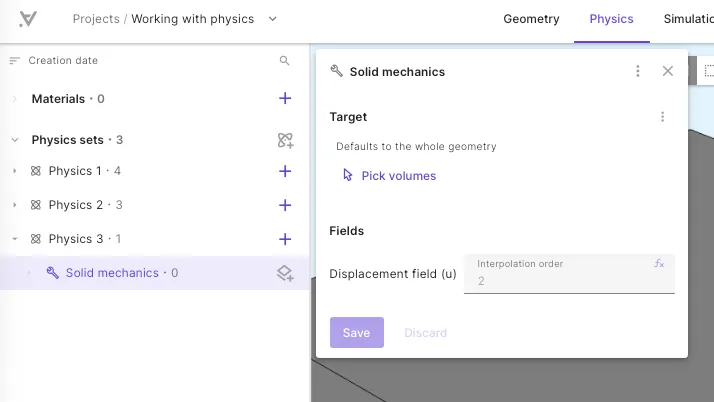
Select Save when you are done choosing settings. The physics is listed as a child item under the physics set in the sidebar.
For the governing equations, boundary conditions, and available interactions for each physics, see the reference pages in this section — for example Solid mechanics or Elastic waves.
Adding interactions and couplings
Section titled “Adding interactions and couplings”After adding a physics, define how it interacts with boundaries and with other physics.
- Expand the physics set in the sidebar.
- Select Add interaction or coupling next to the physics.
- Choose an item from the Interactions or Couplings menu.
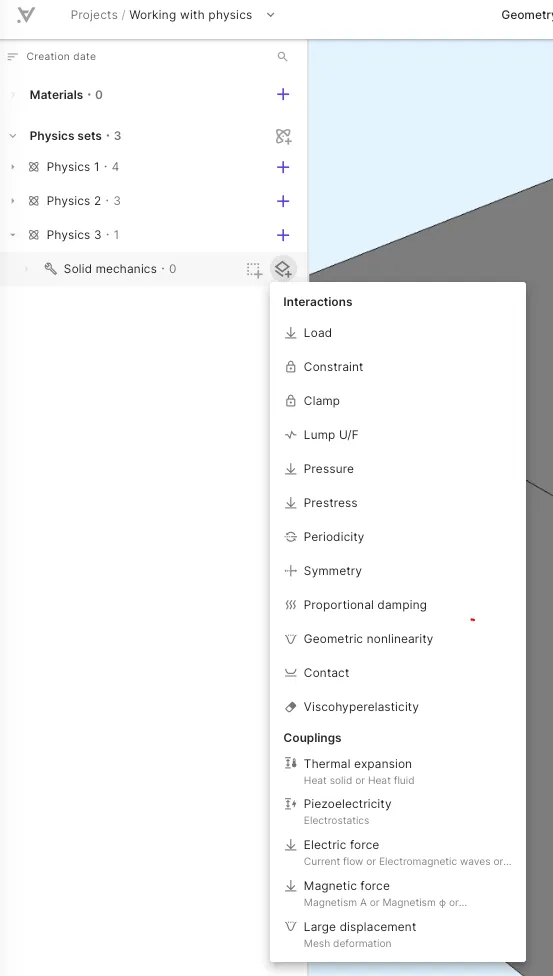
Interactions
Section titled “Interactions”Interactions are boundary conditions, loads, and material models applied within a single physics, for example:
- Load, displacement Constraint, and Clamp on Solid mechanics or Elastic waves
- Perfectly matched layer and Absorbing boundary on wave physics
- Voltage Constraint and Lump V/Q on Electrostatics
Each interaction has a target (the boundary or region it applies to) and one or more parameter values. The full list of interactions for each physics type is documented on that physics reference page.
Couplings
Section titled “Couplings”Couplings link two physics models across a physics set. The menu shows which secondary physics each coupling requires — for solid mechanics, for example:
| Coupling | Requires |
|---|---|
| Piezoelectricity | Electrostatics |
| Thermal expansion | Heat solid or Heat fluid |
| Electric force | Current flow, Electromagnetic waves, Electrostatics, or Magnetism H |
| Acoustic structure | Acoustic waves (owned by and added from Acoustic waves) |
Add the coupling from the physics that owns it, then select the target region — typically the interface where the two physics meet, or the material regions where the two physics overlap.
Next steps
Section titled “Next steps”- Define materials and assign them to geometry regions before or alongside physics setup.
- Use regions to name and reuse target selections across materials, physics, and interactions.
- When physics are configured, move to Simulations section to create a simulation, select your physics set, and run.